- Contents
- Index
- Search

Show results that include all search words
Importing and Exporting Documents
Debtor/Creditor Account > Documents
Tab >  and
and 
Importing a Document
To import a document:
-
From the Documents tab inside the record, either:
-
Click the Import button
,
select the appropriate document / file and click Open,
or -
Drag and drop a document file onto the Documents tab.
-
-
You will see the following window:
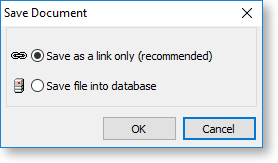
To reduce the size of the database, MYOB recommends keeping this file as a link only.
-
Click OK and the Document Manager window opens, prompting for details on the recently imported document.
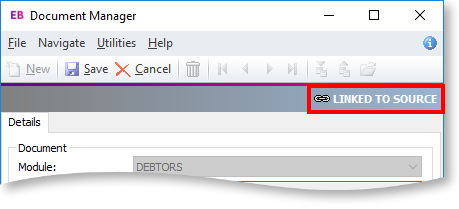
If you choose to import this document as a link, this is labelled in the Document Manager window:
Exporting a Document
To export a document:
-
From the Documents tab inside the Master Account, click the Export button
. -
Select the destination directory for this document and click Save. A window will open confirming the successful export, click OK to complete the process.