- Contents
- Index
- Search

Show results that include all search words
Support
If you experience a situation where an error has occurred and you aren't sure what to do, here are a few simple things you can do to help us in our efforts to resolve your query.
- Is it something I can resolve myself?
- Did you change something in the Payroll or your computer system just recently that may cause something to stop working in the Payroll?
- Is it possible you can revisit those changes and see if that did cause the problem? Note exactly what you were doing when the error happened.
How to Print a Support Diagnostics Report
Click the Support button on the MYOB Login screen or the About window. This opens the following screen:
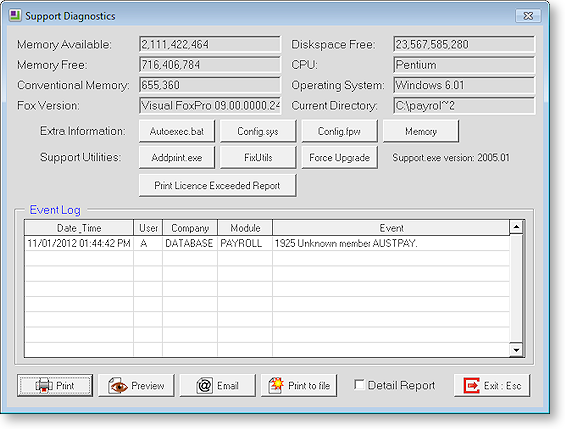
Click the Print button to send a support report to your default Windows printer. This report can then be faxed to MYOB.
Alternatively, you can click Email to send the Support Report via email. If the issue is particularly complex, it is often a good idea to write down the problem along with the exact figures you would use and examples of why a certain function doesn't seem to be working properly.
Error Messages
Should this error screen ever appear, it is important that you contact MYOB Support immediately with details of what you were doing just prior to it appearing.
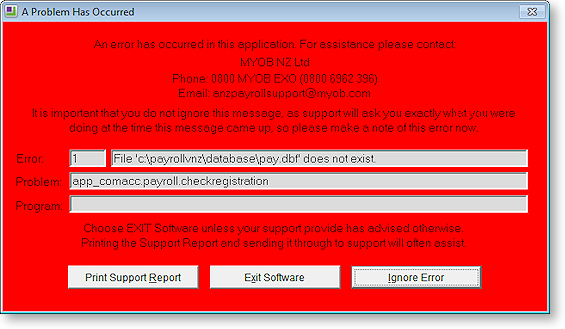
If you are unable to contact Support immediately, then take a note of the information in the grey fields (especially the Error number and description), then click the Print Support Report button to open the Support window, where you can print out a support report. This report can be faxed to MYOB and they will review the problem and contact you as soon as is feasible. Whatever happens, do not ignore this message as it can be an indication of very serious problems.
How to Help Yourself and Avoid Support
- It is expected that the EXO Health and Safety operator has a thorough understanding of the latest available manual and that matters covered in the manual may not handled by the Help Desk.
- If you have a change of operator, then chargeable training will be required if your own in-house training was insufficient. We are unable to conduct "training" over the phone.
- Try out what you are attempting in the Demonstration Company first - you will not do any damage there.
- Ensure you are doing regular Back-ups to Floppy Disk. Even as you are entering your data.
- Press the F1 key to open the on-line Help.
- Consult the relevant section in the EXO Health and Safety manual.