Platform: Redesigned Report Forms in the Modern UI
In MYOB Acumatica 2026.1.1, report forms in the Modern UI have been redesigned for a cleaner look and more intuitive user experience. The new layout makes it easier to find commands, manage templates, and work with report versions.
Here’s a closer look at the enhanced Modern UI report forms in this release.
Find the Needed Commands with Ease
Report forms in the Modern UI now feature a cleaner appearance. Although the functionality hasn't changed, working with report forms is now more straightforward.
To make it easier to create templates and modify reports, all the commands are now grouped on the More menu (shown below). Whether you're creating a template or editing a report, you'll find all the needed commands in one place.
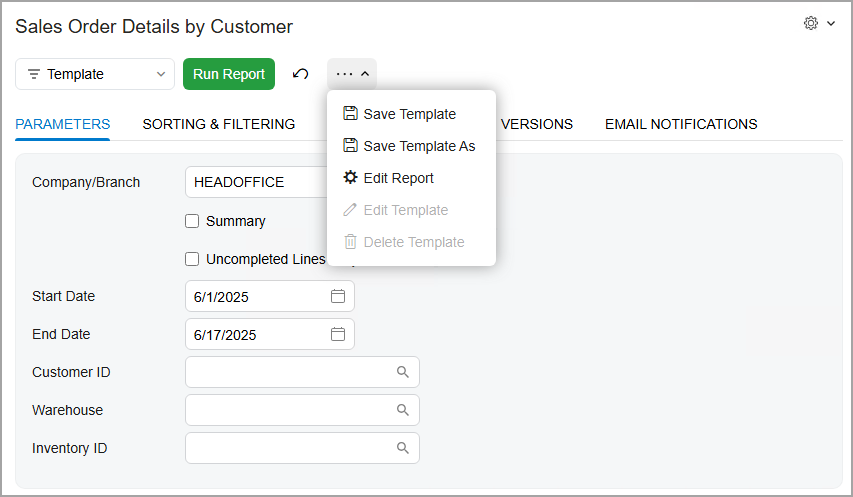
Also, the Run Report button on the form toolbar is now highlighted in green to draw attention to the most common action users take on a report form.
Create Templates More Efficiently
Creating report templates is now easier and more efficient. When saving a report as a template, you specify all the needed settings in the Save Template dialog box (shown below).
In this dialog box, you specify the name of the template and mark it as default, shared, or both. (Previously, you could select either the Default check box or the Shared check box.)
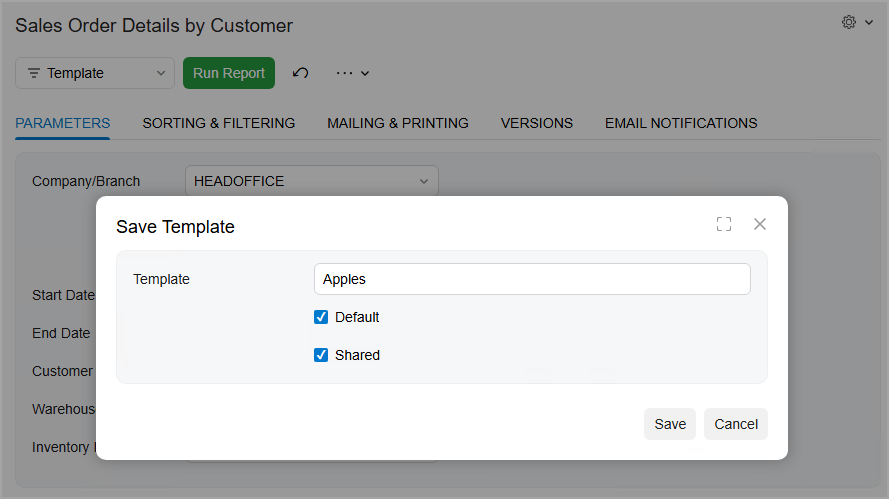
If you want to create a template based on an existing one, use the new Save Template As command on the More menu. In the Save Template dialog box, simply enter a new name and select or clear the check boxes as needed.
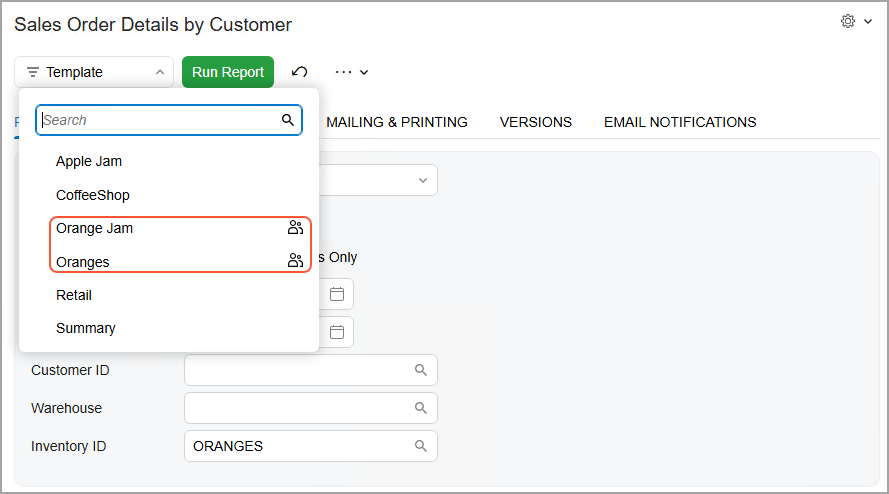
Shared templates are now marked with the Group icon (shown below) to help you identify them quickly.
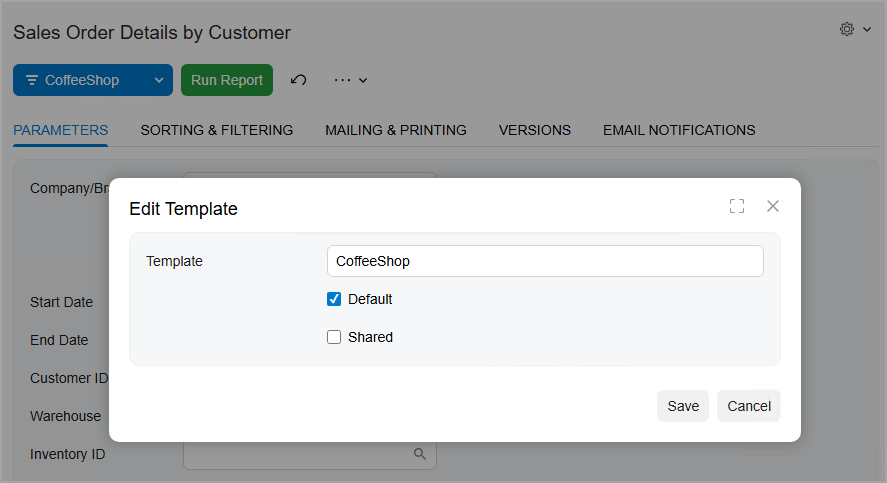
In Version 2026.1.1, you can also edit the existing templates. Just select a template in the Template box, click Edit Template on the More menu, and modify the template settings in the Edit Template dialog box (shown below).
Find Your Templates Quickly
All the templates are listed in the Template lookup box, which you can find on the report form toolbar (see below).
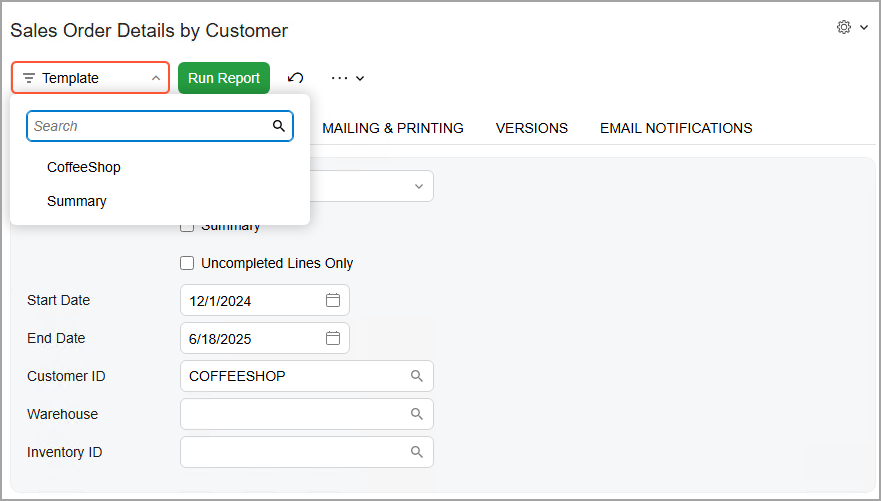
If no template is selected, the lookup box remains empty. After you select a template, its name appears in this box, which becomes highlighted in blue.
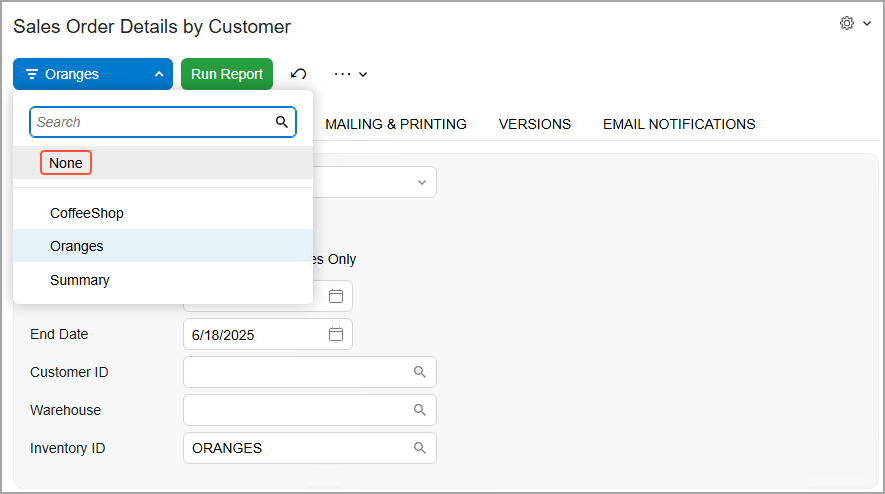
To run a report without using a template, select None in the box (see below). In
previous versions, you had to click  in this box, which could be mistaken for deleting the
template.
in this box, which could be mistaken for deleting the
template.
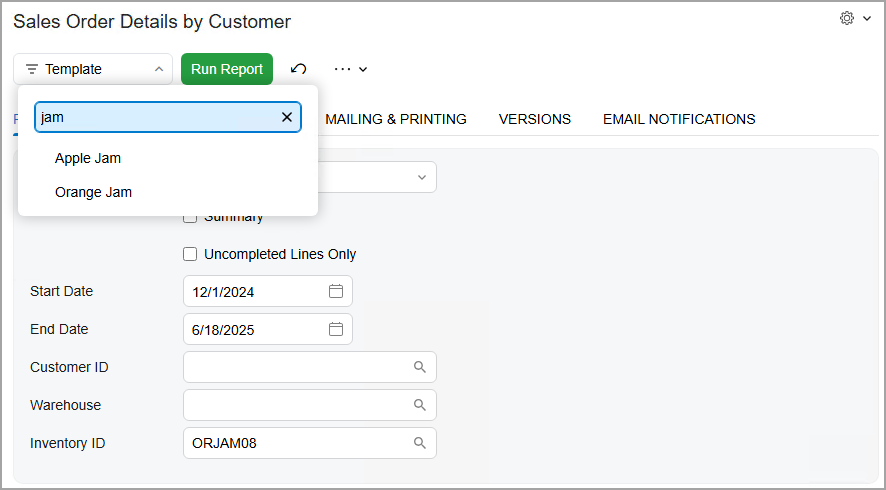
To quickly find a template, you start typing its name in the Search box (shown below).
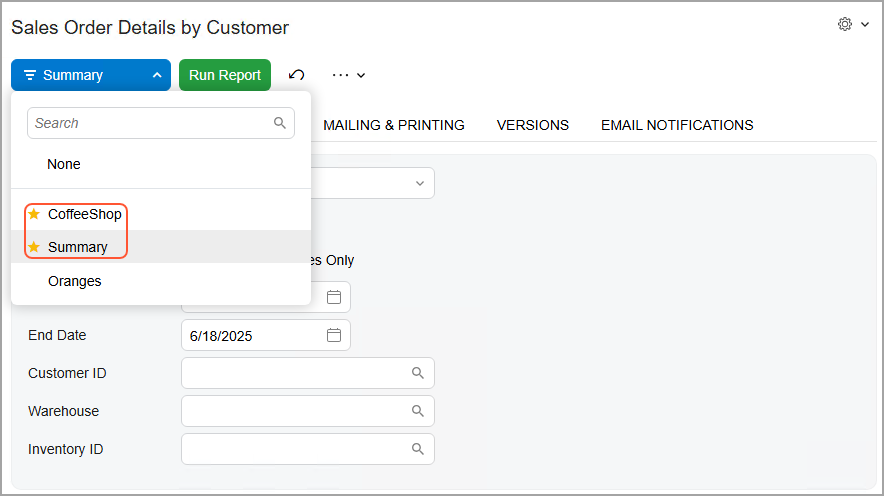
You can mark frequently used templates as favorites. The system lists these templates at the top of the list (shown below).
Streamline Mailing and Printing
When you add recipients on the Mailing & Printing tab, the system checks the format of the email addresses entered in the To, Cc, and Bcc boxes. If an address’s format is incorrect, its box is highlighted in red so that you can quickly identify and correct the issue.
For clarity, we’ve moved the Locale and Localization boxes from the Summary area to the new Regional section on this tab.
Manage Versions with Ease
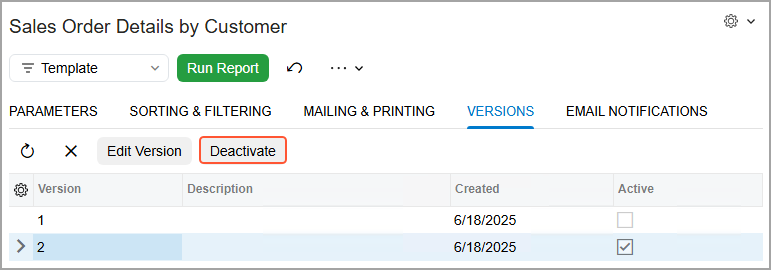
Activating or deactivating report versions is now a click away. If a report version is active, you’ll see Deactivate on the table toolbar (shown below). If the version is inactive, this button changes to Activate.