
Data Feed: Configuration of Layout
You can configure the layout of tiles and field values in a data feed by adjusting how text is displayed and how tiles are arranged.
Field Values as Plain Text
If you want field values to be displayed as a plain text without the control functionality—for example, for the qp-text-edit or qp-selector control—do the following:
- In the DAC, make sure to disable all fields that should be displayed as plain text.
If one of the controls should remain available for editing, enable that control in the DAC.
- Put the qp-data-feed tag inside the qp-text-light-scope tag.
The following code shows the use of the qp-text-light-scope tag.
<qp-text-light-scope>
  <qp-data-feed id="dfContacts" view.bind="Contacts" auto-resize="true">
  ...
  </qp-data-feed>
</qp-text-light-scope>
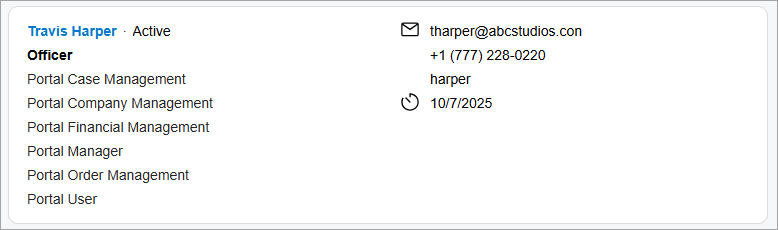
The resulting data feed is shown below.
Tiles in a Single Line
To put multiple tiles in a single line, specify the width of each tile, as shown below.
<qp-data-feed id="dfItems" class="no-toolbar" width="180px"
  view.bind="FilteredItems" page-size.bind="20">
  <template>
    <qp-include url="../catalog/catalog.html" view="{{$viewName}}">
    </qp-include>
  </template>
</qp-data-feed>
You can also create a CSS class that specifies the tile width. The following example shows a class that specifies the default width and calculates the width for screens that are narrower than 600 pixels.
.sp-feed-item {
  width: 186px;

  @media (width < 600px) {
    width: calc(round(down, 50vw - var(--sp-column-gap) * 1.5, 1px));
  }
}