Supercession Processing
This form is enabled if the Supercessions module is in use, and the option to Use Supercessions is selected on the Options tab of the Module Control form.
You can also access this form from the Inventory Item Maintenance form by clicking the Process button in the Supercession Details area at the base of the item's main form. A supercession is if one or more items replace an existing item — for example because an item has become obsolete, or it has a new item number and new packaging, and the like.
Supercession types are defined on the Supercession Maintenance form. Specific options are for a supercession type, which represent the rules that applies when an item supercession is processed.
When an item is superceded, both the superceded item and the item that superceded it is flagged in the Item Maintenance form so that you can easily see that a supercession has occurred.
To process a supercession, select the item that you are superceding, either by code or description. Once the item is selected, select a Supercession Type. You can select any type that is previously defined on the Supercession Maintenance form.
When you select a type, the remaining details and options on the form uses the type selected. You can edit options before processing a supercession only if the option to Allow default change during process is selected in the Supercession details section on the Options tab of the Inventory Module Control form. If you don't select this option, the supercession type details defaults to the processing form in read-only format, and cannot be edited before processing.
Options Reference
Each option and field on the form is described below. Mandatory options and fields are highlighted in red.
Inventory Quantities
When a supercession type is defined, the Inventory Quantities options define how to deal with on-hand balances of the item that is being superceded:
- Transfer all inventory on hand
to new item - If you select this option, when the supercession
is processed, the on-hand quantities (by location) are adjusted off
the item being superceded, and adjusted on to the item that is superceding
it.
Note: The quantity that is adjusted to the new item is using the ratio entered into the New Item Details table.
Select this option if the new item is exactly the same as the old item, but the item number has changed, and to start selling the item under the new number immediately. When a supercession of this type is processed, it may involve re-labelling cartons.
When the option to transfer inventory is selected, you are prompted to enter transactions details: the negative adjustment transaction type and reference (unique), positive adjustment transaction type and reference (unique), tax code, and branch. These are the details that Greentree Desktop uses when creating the automatic inventory adjustment transactions during processing.
Note: You can't select this option if you are processing a one-to-many supercession.
- Do not transfer all inventory on hand to new item - Select this option to not transfer inventory from the item being superceded to the new item. Select this option to deplete inventory of the superceded item first, before selling the new item, and/or if the new item is not exactly the same as the old item, so must be purchased and stocked in its own right.
Sales orders
These options indicate how to treat open sales orders when a supercession is processed:
- Do not adjust sales orders
- Select this option to not adjust any open sales orders
for the item being superceded. This would imply that you have sufficient
inventory on hand of the superceded item to meet the demand of open
orders, and want to deplete the inventory of the superceded item before
selling the new item.
Transfer backorders to new item - Select this option to cancel outstanding order lines for the superceded item, and create new order lines for the new item
Note: The line quantity for the new item is adjusted if the ratio entered into the New Item Details table is greater than one.
If you select this option, you must enter an SO Cancel Reason which Greentree Desktop assigns to the cancelled sales order lines for the superceded item. You can set up a special reason code to use when a supercession is processed, so that you can easily tell that a sales order line was cancelled because of a supercession.
- Get price from new item
- Use this when transferring backordered items to an already existing
item.
If you select this option, the price of the transferred backorder will come from the existing item rather than the superceded item.
Note: If Copy all superceded item maintenance details to new item(s) is selected, this option will have no effect as the price of the new item is copied from the superceded item.
SO cancel reason - Select the sales order cancel reason to apply to the old item of backorder transfers to the new item. The default is set up using supercession maintenance for the selected supercession type.
Reordering Sales History
These options apply to the reordering processes (basic and advanced), and indicate how to use sales history for superceded items and new items when suggested reorder quantities are calculate:
- Merge sales history for reordering
- Select this option to combine the sales history of the superceded
item and the new item for calculating a suggested reorder quantity
of the new item. Select this if you know that the demand for the new
item is the same, or very close to, the demand of the old item.
Note: The sales history of the old item is adjusted if the Ratio entered into the New Item Details table is greater than 1.
- Retain independent sales history for reordering - Select this option to treat the old item and new item as separate. When the reorder process is run and a suggested order quantity is calculated for the new item, Greentree Desktop only uses the sales history of the new item. Select this option if the demand for the old item and demand for the new item are in no way related, and the sales history of the new item has its own pattern emerge over time.
Purchase orders
These options indicate how to treat unreceived purchase orders when a supercession is processed:
- Do not adjust purchase orders
- Select this option to not adjust any unreceived purchase
orders for the item being superceded.
If you select this option, when the orders are received, you will still receive the item under the old number, and consequently the on-hand balance of the superceded item is increased at that time.
- Transfer unreceived orders to new item - Select this option to cancel unreceived order lines for the superceded item, and create new order lines for the new item.
Note: The line quantity of the new item is adjusted if the Ratio entered into the New Item Details table is greater than 1.
If you select this option, you must enter a PO Cancel Reason which Greentree Desktop assigns to the cancelled purchase order lines for the superceded item. You can want to set up a special reason code that you can use when a supercession is processed. You can easily tell that a purchase order line was cancelled because of a supercession.
When you select the option to unreceived orders, the new purchase order lines has the same details as the old line, except that the item number is different. The order is received under the new item number. Select this option if you know that the inventory you are expecting to receive is the new item — for example, if the supplier has notified you in advance of a supercession, and indicated that any new inventory being shipped is the new item instead of the old.
Inventory Item Maintenance
These options define whether to update the new item details to be the same as the superceded item details. If the option to Copy all superceded item maintenance details to new item(s) is selected, when the supercession is processed, Greentree Desktop updates the new item with these details of the superceded item: Costing, Pricing, Supplier Details, Reorder Details, UOM details.
Details assigned on the Main tab and general ledger accounts assigned on the Defaults tab on the Inventory Item Maintenance form, the superceded item is assumed by the new item.
Note: If you are processing a one-to-many type supercession, and are copying item details, the costing and pricing details will not be copied.
If you select the copy option, you can enter the new item number into the New Item Details table (free-form), and Greentree Desktop creates it when the supercession is processed. If you don't select the option, you must set up the new item before processing the supercession, so that you can define the details for the new item. You must select an item in the New Item Details table, from a list of items already set up on the Inventory Item Maintenance form.
Whether the option to copy item details is selected or not, you must select an item status code in the Default status to superceded item field. This is the item status code that defaults to the superceded item when the supercession has processed. You can want to define a specific status code to represent supercessions, for example, you can set up a status code of Item Superceded, which is active, but do not allow purchases.
If the option to copy details is selected, you must also select a status code in the Default status to new item(s) field. This is the status code that defaults to the new item when it is created by Greentree Desktop. during supercession processing.
Replace bill of materials
If the old item exists in a manufacturing bill of material (or several), you can run a Bulk Replace BOM process at the same time the supercession is processed. Select the option to replace the old item with the new items in all bills of material that have the old item as a component.
New Item Details Table
If you are copying superceded item details to the new item, enter the new item code (up to 20 characters) and description (up to 30 characters) here. If you are not copying details to the new item, you must select an item from one that has already been set up on the Inventory Item Maintenance form.
If the superceded item is going to be replaced by more than one item, enter or select the number of items in the table (one line for each item).
For each item line, enter a Ratio. This defines the old item to new item ratio when converting quantities if backorders and unreceived purchase orders are being updated. A ratio = 1 indicates that one unit of the superceded item is equal to on unit of the new item. A ratio of 2 indicates that one unit of the superceded item is equal to two units of the new item. When the supercession is processed, the new order lines created by Greentree Desktop. has a quantity = original line quantity x ratio.
Process
Click this button to run the supercession process. The following occurs:
- If the option to transfer inventory on hand is selected, Greentree Desktop will ensure there is no inventory of the superceded item that is committed to sales or factory orders. If there is, you can't process the supercession.
- If the option to transfer inventory on hand is selected, and the supercession has a one-to-one relationship, Greentree Desktop generates adjustment transactions to adjust the inventory off the superceded item, and adjust it to the new item (by location). The quantity adjusted to the new item is using the ratio . The positive adjustment quantity is the on-hand quantity of the superceded item x ratio.
- If the option to transfer backorders to the new item is selected, Greentree Desktop cancels backordered lines for the superceded item, apply the cancel reason code, and create new sale order lines for the new item. The line quantity of the new lines is the original line quantity x ratio. If the supercession is a one-to-many type, multiple sales order lines are created for the new item, using the number of items entered into the New Item Details table.
- If the option to transfer unreceived orders to the new item has been selected, Greentree Desktop cancels unreceived purchase order lines for the superceded item, apply the cancel reason code, and create new purchase order lines for the new item. The line quantity of the new lines is the original line quantity x ratio. If the supercession is a one-to-many type, multiple purchase order lines are created for the new item, using the number of items entered into the New Item Details table.
- If the option to copy item details is selected, Greentree Desktop creates a item masterfile using the item code and description entered into the New Item Details table. These details are copied to the new item: Costing, Pricing, Supplier Details, Reorder Details, UOM details. Details assigned on the Main tab and general ledger accounts assigned on the Defaults form on the Inventory Item Maintenance form for the superceded item will also be assumed by the new item. If the supercession is a one-to-many type, multiple item masterfiles are created, using the number of items entered into the New Item Details table. For a supercession of this type the costing and pricing details will not be copied.
- The item status code for the superceded item is updated, and the item status code for the new item is updated if item details were copied.
- The Supercession Details is updated for the superceded item and the new item. These display in the Inventory Item Maintenance form. These details enable you to view the history for items that have been involved in the supercession process.
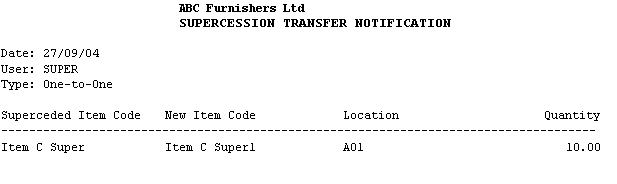
- If the option to transfer inventory quantities was selected before
processing, the last stage of the process presents you with an option
to print a Transfer Notification report, which you can use as a notification
to the warehouse so that they know they have to re-label the item
physical unit. The report outputs:
To view details for supercessions that have been processed, you can print a Supercession Audit Report.