- Contents
- Index
- Search

Show results that include all search words
M-Powered Invoices
Using M-Powered Invoices, your debtors can pay you via BPAY®, credit card online or by phone, or any Australia Post outlet. To use M-Powered Invoices:
-
Set up Exo Business to use M-Powered services.
-
Generate M-Powered Invoices and send them to Debtors.
-
Debtors make payments, which MYOB processes.
-
MYOB supplies Customer Payments files, so that you can import payments into Exo Business as Debtor Payments.
Note: The M-Powered Invoices service is only available in Australia.
Setting up M-Powered Invoices
M-Powered Invoices must be set up before you can use them in Exo Business.
Use the latest Exo Business installer to set up program files. If you copy the executables, you can miss copying additional files that are necessary to connect to the M-Powered services database.
Also, the registered company name in the Exo Business Configurator cannot contain characters that Windows does not allow in a filename – for example,. \ / : * ? ," |
The first time an M-Powered Services database is created from Exo Business, it also creates a .box file to hold the M-Powered database. This has a name that matches the Company Name in the Exo Business Configurator under Company > Company Details. If you need to change you company name, contact the MYOB licensing department for new Exo Business registration codes. Also, contact the M-Powered Services team for the new licensing and user login codes
Activating M-Powered Options
Select Setup > M-Powered Details.
Note: If this menu option is not available, add it using the Exo Business Configuration Assistant under Staff > Menus.
The MYOB M-Powered Services window displays:
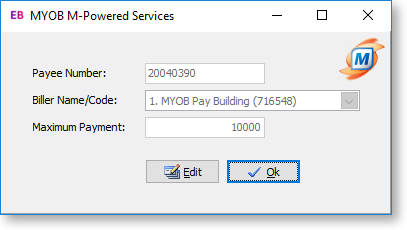
If you do not have an M-Powered Payee Number, click the Sign Up button to open a web browser. You're taken to the MYOB M-Powered Services signup page.
If you have a Payee Number, click the Edit button and then add information to these fields:
|
Field |
Description |
|
Payee Number |
Enter the number that you obtained when you signed up for MYOB M-Powered Services. |
|
Biller Name/Code |
Select the name or code to use on M-Powered Invoices. This displays in the How to Pay section of the invoice. |
|
Maximum Payment |
The maximum payment amount per invoice for credit card transactions. This field is optional |
Set up Debtors
For all Debtor accounts that use M-Powered Invoices:
-
Open the Debtor account and select the Details 2 tab.
-
Select M-POWERED as the Invoice Type property.
Set up Profiles
The following profile settings can be configured in the Exo Business Configuration Assistant to customise M-Powered Invoices:
-
Enable MYOB M-Powered invoice as the default invoice type for all accounts (Company profile) - Select this option to set the invoice type for all M-POWERED.
-
Default payment type for import of M-Powered Invoice data (User profile) - Select the default payment type for payments that are imported as Customer Payments.
Generating M-Powered Invoices
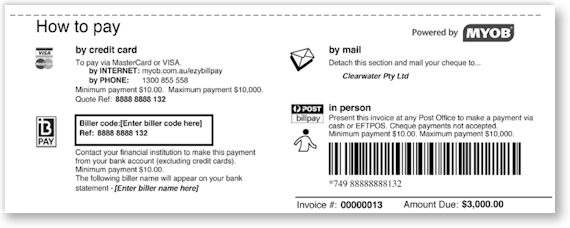
M-Powered Invoices contain the How To Pay section, which gives the Debtor instructions for how to pay the invoice:
Importing Customer Payments
You receive two Customer Payments files by email. The files detail all payments made by your Debtors, and the total amount credited to your nominated bank account:
- An M-Powered Payment File, with an extension of .MYC.
- A Payment Advice file in PDF format. This file lists each payment received and the invoice it relates to.
To import the payments into Exo Business as Debtor Payments:
-
Save the two Customer Payments files.
-
Click the M-Powered button at the top of the window.
-
Browse to the location of the .MYC file to import.
-
Select the file and click OK.
-
All valid transactions are imported and appear on the Debtors Payment/Receipt Batch Entry window.
Note: If any invoice numbers in the .MYC file are not found by the import function, a window detailing the unsuccessful imports displays. Click the Print button, and then click the Close button to continue with the accepted transactions. Click Cancel to reject the entire import.
-
Change the General Ledger code of the Bank Account. This defaults to the GL code specified in the Payment Group that the M-POWERED Payment Type belongs to.
-
Select the Post to GL option to post the transactions to the General Ledger when you save this batch. If you don't select this option, the transactions post to the Debtors Ledger only.
-
Select the Auto Allocate option to allocate payments which match by value. The Allocation window opens for payments that do not match by value.
-
Click the Save button.
Note: You can enter payments by clicking the New button and entering the information from the Payment Advice file.