- Contents
- Index
- Search

Display results with all search words
Printing Tips
How do I set an image to print only on duplicate copies?
-
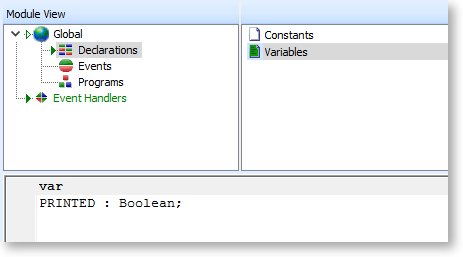
Declare a boolean global variable to hold the printed value.
-
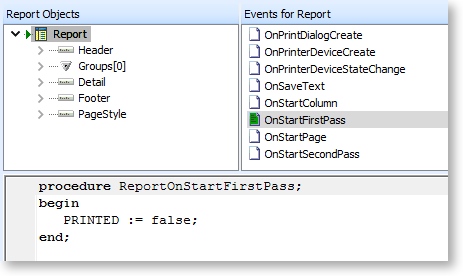
Set the PRINTED variable to false at the start of the report.
-
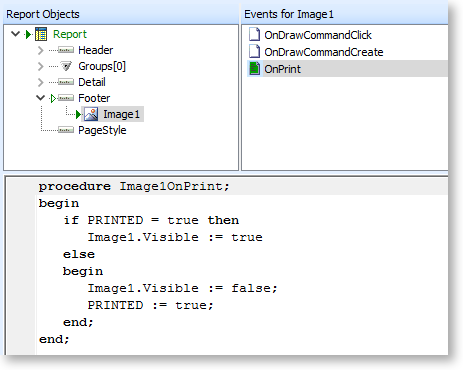
Set the set the image to visible if PRINTED is true, otherwise hide the image and set PRINTED to true.
How do I set the number of copies to print at design-time?
This can be set by entering a value for the Doc Copies property on the Report Setting window:
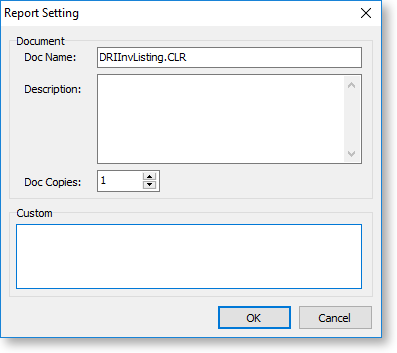
Open this window by selecting Setting from the Tools menu on the Design tab.
How do I make the second or subsequent copies print slightly differently?
Within one print session you can use the Copies and CopyCounter global variables to control the visibility of a label or content a variable type object on your form. One use of this is to print "Original" or "Copy" on various copies that are printed.
Example:
Add a label to your report and change the size, colour and position of the label to suit your needs. Change the label name to ShowCopy. Add this code in the ShowCopy labels' OnGetText event handler:
if plGlobalVars['CopyCounter'] = 0 then
ShowCopy.Visible := false; {Customer copy shows
nothing}
if plGlobalVars['CopyCounter'] = 1 then
begin
ShowCopy.Visible := true;
Text := 'ACCOUNTS COPY';
end;
if plGlobalVars['CopyCounter'] = 2 then
begin
ShowCopy.Visible := true;
Text := 'FILE COPY';
end;
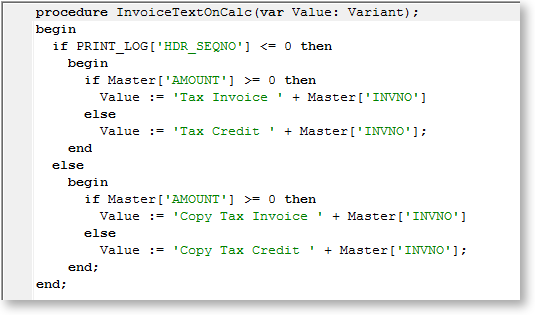
With regards specifically to Tax Invoices and Copy Tax Invoices printed at a later date, you need to establish if there is a previous entry in the print log for this transaction from a previous print session.
Note: This is quite different from duplicates within a single print session, where the print log entry is not made until the whole print session was successful.
Example:
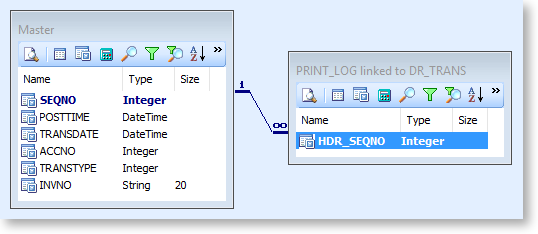
Where the PRINT_LOG table is joined onto the DR_TRANS.SEQNO, you can use this to establish if there has been a previous successful printout of an invoice document:
Then using the value returned, you can incorporate this into a variable that provides the text for the title of your invoice document:
How do I dynamically map a printer based on the value of a field?
You can use the Custom field of the Report Setting window to specify different printers based on the value of a field in a data source.
How do I print a second copy to a different printer?
You can use the Custom field of the Report Setting window to specify different printers for different copies.
How can I direct a report to a different printer trays on a network?
The main difficulty with printing to different trays of a printer in lies with the convention of naming of printers in Windows, and the inability to be able to attach the same shared network printer twice on the client PC.
When you add a shared printer in Windows it is added with the name of "'Printer Share Name' on 'Computer it is shared on'" for example "HP8000 on Server2". This means that when you try to add the printer again so you can use another tray, it won't let you because the printer already exists. To get around this you need to add the printer alias and share it again on the computer that it is already shared on.
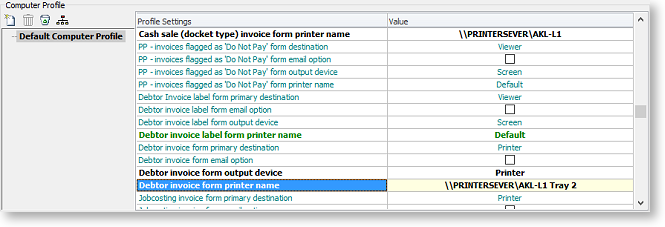
When you have added the printer to the printer list on the print server, change the printing preferences so that the Paper Source uses the tray required. This will be different between the makes of printers, but clients connecting to this shared alias will inherit this change. You can then add the new printer alias on client's PCs. Once the printers is set up you will now have to set your invoice to print two copies to the different trays.
The first step is to set the print options in Exo Business Config:
Then Change the Invoice Form to print two copies to different locations by selecting Settings from the Design tab's Tools menu when you have the Invoice.clf open.
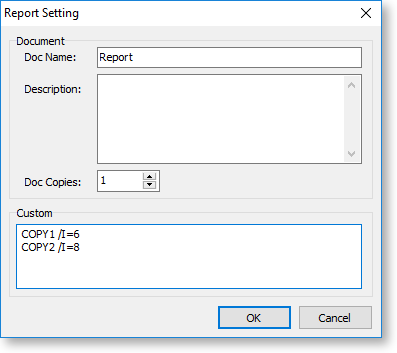
Once this is all done when you now print an invoice normally, two copies will be printed to the two locations that were set up.
How do I set the number of copies to print from a database field?
Try the following code:
procedure ReportBeforePrint
begin
Report.PrinterSetup.Copies:= <value>;
end;
{The line above could be any one of these:
Report.PrinterSetup.Copies := 3;
Report.PrinterSetup.Copies := Dr_accs['invfileno'];
Report.PrinterSetup.Copies := plparams['CopiesValue'];
}
The only conditions in which the above piece of code would fail are:
- If there is a profile that controls the number of copies of a specific form.
- If the form is not previewed and is called through a custom button that directly sends the report to the printer.