- Contents
- Index
- Search

Show results that include all search words
Dashboards
Reports > Dashboards
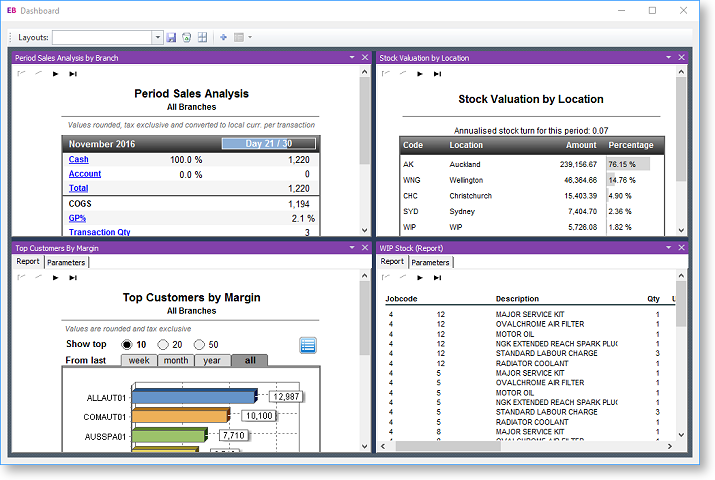
Dashboards are customisable displays showing one or more "gadgets". In most cases these gadgets are summary reports, making the Dashboard an at-a-glance overview of the entire MYOB Exo Business system. Other functions can be added as gadgets however, including external applications.
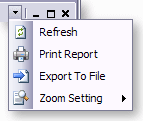
Data on Dashboard reports can be printed or exported using the options on each gadget's toolbar.
Setting up Dashboards
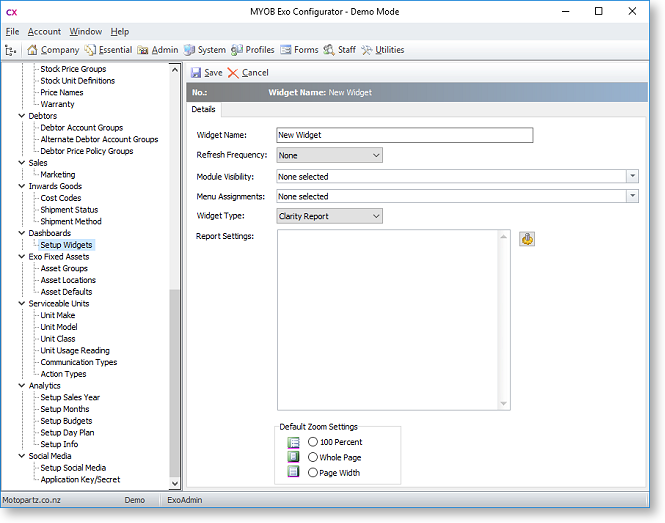
To create a new gadget:
-
Select Setup Dashboards from the Tools menu.
-
Click the New button.
-
Enter a name for the Dashboard.
-
Click the
 button to select a report file. Once a report is selected, this button opens a window to set any necessary report parameters.
 -
Select the Refresh Frequency, which determines how often the data in report is automatically refreshed.
-
Select an Access Permission:
-
Public - anyone can add the gadget to Dashboards
-
Private - only you can view the gadget
-
-
Select Default Zoom Settings, which determine how large the report appears inside its frame.
-
Click Save.
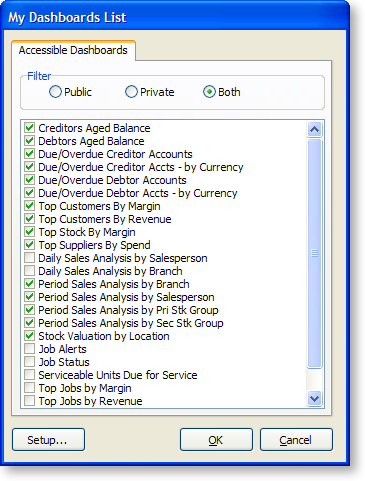
To add a gadget to the Dashboard, click the arrow next to the Setup Dashboard button (  ) and select a gadget to add from the drop-down menu. Only Public gadgets appear in this menu. You can also select "Personal Dashboard List" from the menu to select multiple gadgets from a list of Public and/or Private gadgets:
To change the layout of the Dashboard:
-
Drag gadgets around to re-order them.
-
Click and drag the border of a gadget to re-size it.
-
Use the Zoom Setting options on a gadget's toolbar to make that gadget fit to its frame:
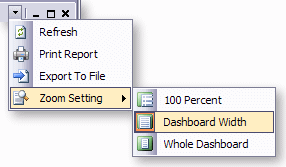
Click Tools > Save Layout to save the current layout of the Dashboard.