- Contents
- Index
- Search

Show results that include all search words
Importing Stock Movements
The Stock Movement Import window contains all functionality of the Stock Movement Transactions window, and includes additional import and error management functions.
Note: If the Use old manual stock movement screen profile setting is disabled, this window appears as the default stock transaction entry window; if it is enabled, the Stock Movement Transactions window is displayed by default, but you can open this window by clicking Import Movements on the Stock Movement Transactions window.
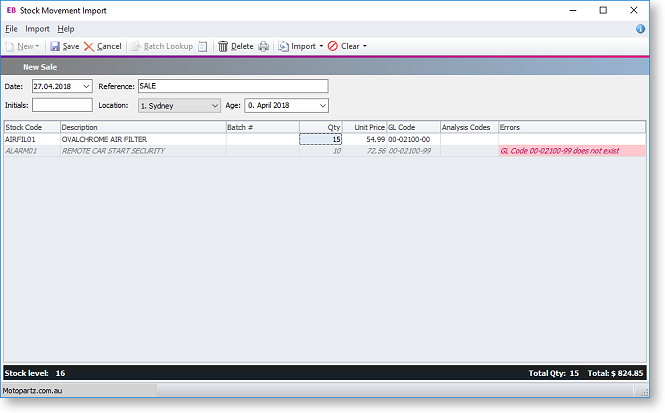
To import stock movements, click the New button on the main toolbar to create a new batch of stock movements, then click one of the options from the Import dropdown:
- Import from the clipboard - Pastes the contents of the clipboard into the main grid. This allows you to cut and paste stock movements from another document, e.g. a spreadsheet.
- Import from a file - Copies stock movements from a selected comma-separated or tab-delimited file.
Import files should contain a header row with heading names that match the column names of the window, for example:
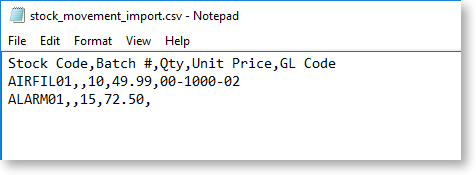
Provided a header row is included, you do not need to include every column from the Stock Movements window. If there is no header row, the import function will attempt to import data into columns on the window from left to right.
Note: The import function does not import the item description - if you include a Description column in the import file, the data in it will be ignored.
Click Save to save all stock movement transactions in one operation. Any errors in the imported data are highlighted in the Errors column; the batch cannot be saved if any errors are present.
The Clear dropdown lets you remove all rows from the window, or remove only those rows that contain errors.