Grids
Exogrids are used in many parts of MYOB Exo Business. They simplify and standardise the way information is displayed, and control the columns that are visible and how they are sorted. The depth of functionality may vary by grid.
Note: Video-based Help is available for this topic on the Exo Business Education Centre.
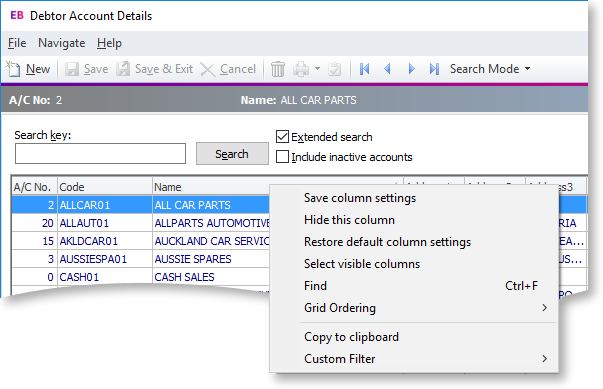
Clicking on a column header name will sort the grid by that column (Code in the example above). Dragging and dropping a column name header will re-order the grid (e.g. you can move Name to be the first column in the grid).
Right-clicking anywhere on the column headers opens a popup menu containing the following options:
-
Save column settings – retains the current settings for this grid on the workstation.
-
Hide this column - as the function implies, the hides the selected column. This is useful for hiding information that is not relevant to this list. Individual columns can be reactivated by using the Select visible columns command.
-
Restore default column settings – resets all changes back to the ‘factory default’.
-
Select visible columns – determines the columns to display in the grid. Some optional columns are not enabled by default, as they may not suit all users.
-
Find – prompts for search text, and searches the grid for a matching entry.
-
Grid ordering – provides two options, to ‘Lock Grid Ordering’ or to ‘Revert to Natural Order’. This prevents automatic reordering when keying-in transactions.
-
Copy to clipboard – copies the contents of the grid to the Windows clipboard, to be pasted into a spreadsheet or similar application (using the Edit > Paste menu in most applications).
-
Custom filter – advanced option to apply custom SQL statements to the grid.
Note: Access to the Copy to clipboard option is controlled by the Allow copying from Grids User-level profile setting.
To set column widths, place the cursor directly over a column boundary
and the cursor will change to the  icon.
You can drag the column boundary to the appropriate width then release
the mouse button to set it. To set this width as default, you will need
to save your settings.
icon.
You can drag the column boundary to the appropriate width then release
the mouse button to set it. To set this width as default, you will need
to save your settings.
Double-clicking an item on the grid body will usually open the item.
Notes
-
Clicking on a column name will sort the grid by that column (in ascending order). Clicking on the column a second time will reverse sort (descending order).
-
Holding down the SHIFT key while clicking on a second column allows multiple sorts (e.g. sort by Primary Group, then by Name)
-
Custom filters are saved in the computer’s registry so are unique to a workstation login.
-
Not all windows use Exogrids, but most search grids an some transaction entry windows do.
-
Grid settings, e.g. column widths and ordering, are specific to each computer. However, they can be saved to the Exo Business database, then restored or replicated on other computers.