- Contents
- Index
- Search

Show results that include all search words
Reviewing the Sell Prices of a Stock Item
An advanced feature is the ability to review and update the sell prices of a stock item using the Sell Price Formulation window. While you can update the sell price of a stock item directly in the Stock Item Details window, the Sell Price Formulation window gives you more detailed information on margins and exchange rates, so you can ensure any pricing change will protect the margins you want on the stock item.
Advanced note: The margins are based on the cost basis selected for your company in the General Settings window of the Configuration Assistant, and the expected margins set for the stock group to which the stock item belongs.
To use this feature, the following Configuration Assistant settings are required:
-
Show Price Formulations must be enabled
-
Hide Stock Costs must be disabled
To review the sell prices of a Stock item using the Sell Price Formulation window:
-
Click the Sell Price Formulation button (
 ) on
the Stock Item toolbar. The Sell Price Formulation window is displayed.
) on
the Stock Item toolbar. The Sell Price Formulation window is displayed.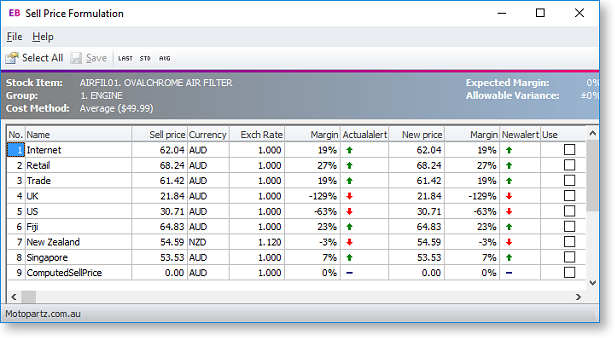
Green or Red arrows show margins outside the expected GP variation range for this stock group, whereas the '-' sign shows that the margin is within the expected range.
-
Click the Last/Std/Avg icons in the toolbar to view the margins from the last cost, standard cost or average cost. The default is what is set in the General Settings window of the Configuration Assistant window.
-
The New Price column suggests a theoretical price for this item based upon the defined formula for each price name. This can be applied to any or all of these prices if chosen. Make any price changes you require in the New Price column.
-
Tick the Use checkbox of the prices you want to update.
-
Click Save. The new sell prices are now applied to the Stock item.