- Contents
- Index
- Search

Show results that include all search words
Backups

While your MYOB system has several forced Backup options, you can perform a Backup at any time by choosing the Backup option from the Utilities menu or clicking the Backup toolbar button. This opens the following window:
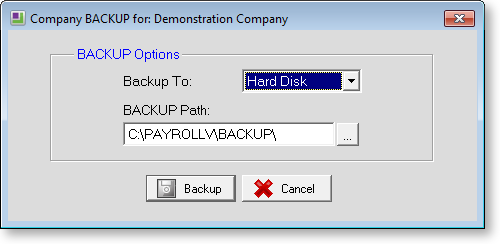
If you are backing up to Hard Disk, you can select a different backup
path by clicking the  button.
Click Backup, and the system will run the backup. The progress of the backup is displayed as it runs. A confirmation message is displayed once the backup is complete.
Backup Options
Select Backup Options from the Utilities menu to configure backup settings.
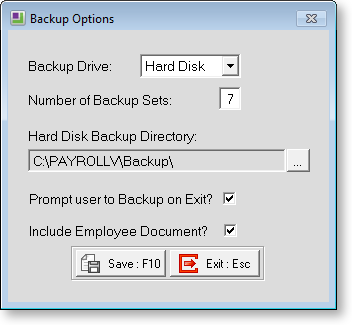
Backup Drive Select the drive letter of the floppy disk drive you want to back up to, or select “Hard Disk”.
Number of Backup Sets Select the number of backup disks you use. It is recommended that maintain a rotation of at least seven backup disks.
Hard Disk Backup Directory Enter the directory to
write backup files to when backing up to the hard drive. By default, the
system backs up to the Backup
directory under the main program directory. To choose another location,
click the button.
Automatic Backup on Exit If this option is ticked, a backup will be done every time you quit or change payrolls. This is recommended, at least in the early stages of using the EXO Payroll system.
Include Employee Document If this option is ticked, any files attached to employee records via the EXO Employee Information module will be backed up along with the company data.
Restoring from a Backup
From time to time you may need to go back to an earlier Pay Period due to a problem with a pay or a hardware fault. You can perform a Restore at any time by choosing the Restore option from the Utilities Menu.
If you have been backing up to your hard drive you will see a screen containing a list of Backups, their dates and when they were performed. Highlight the backup to restore and then click on the Restore button.
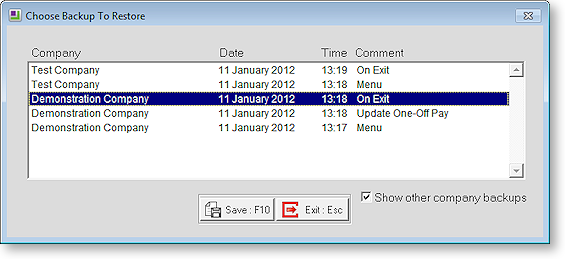
NOTE: This option should be chosen with care and probably only after you have consulted with Support.
Currently Logged In Users
If this message appears when backing up or restoring, it means that some other user is currently logged in somewhere in the system. Check the user (or users) that it lists here and then get them to exit the program to allow you to continue with the function requested.
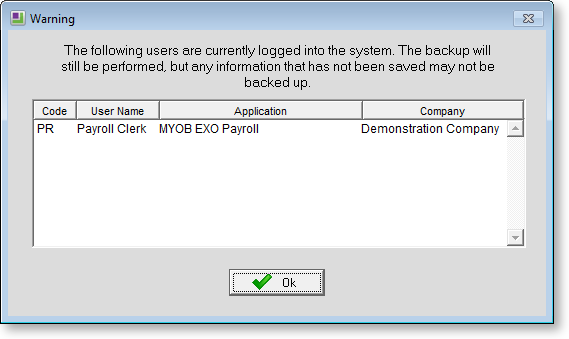
Code The user code (used when logging into the system at the start).
User Name The name set in the User Security screen for that user.
Application If you are running an integrated version of more than one product, then this will inform you of approximately what they are doing and may help to identify who it is (for example someone using the Health and Safety system is probably your Health and Safety person).
Clicking OK will clear this message, allowing you to retry whatever it was you were doing.